
Documentation Index
Fetch the complete documentation index at: https://openmetadata-update-mcp-ref.mintlify.app/llms.txt
Use this file to discover all available pages before exploring further.
How to Ingest Metadata
This guide covers how to integrate third-party sources with OpenMetadata and run ingestion workflows from the UI. OpenMetadata supports metadata ingestion from third-party sources through the CLI or the UI. Admin users can connect to multiple source types: Databases, Dashboards, Pipelines, ML Models, Messaging, Storage, and Metadata services. You can add a connector and schedule metadata fetches at your preferred frequency.Note: You must have Admin access in the source tool to add a connector and ingest metadata.
Step 1: Create a Service Connection
-
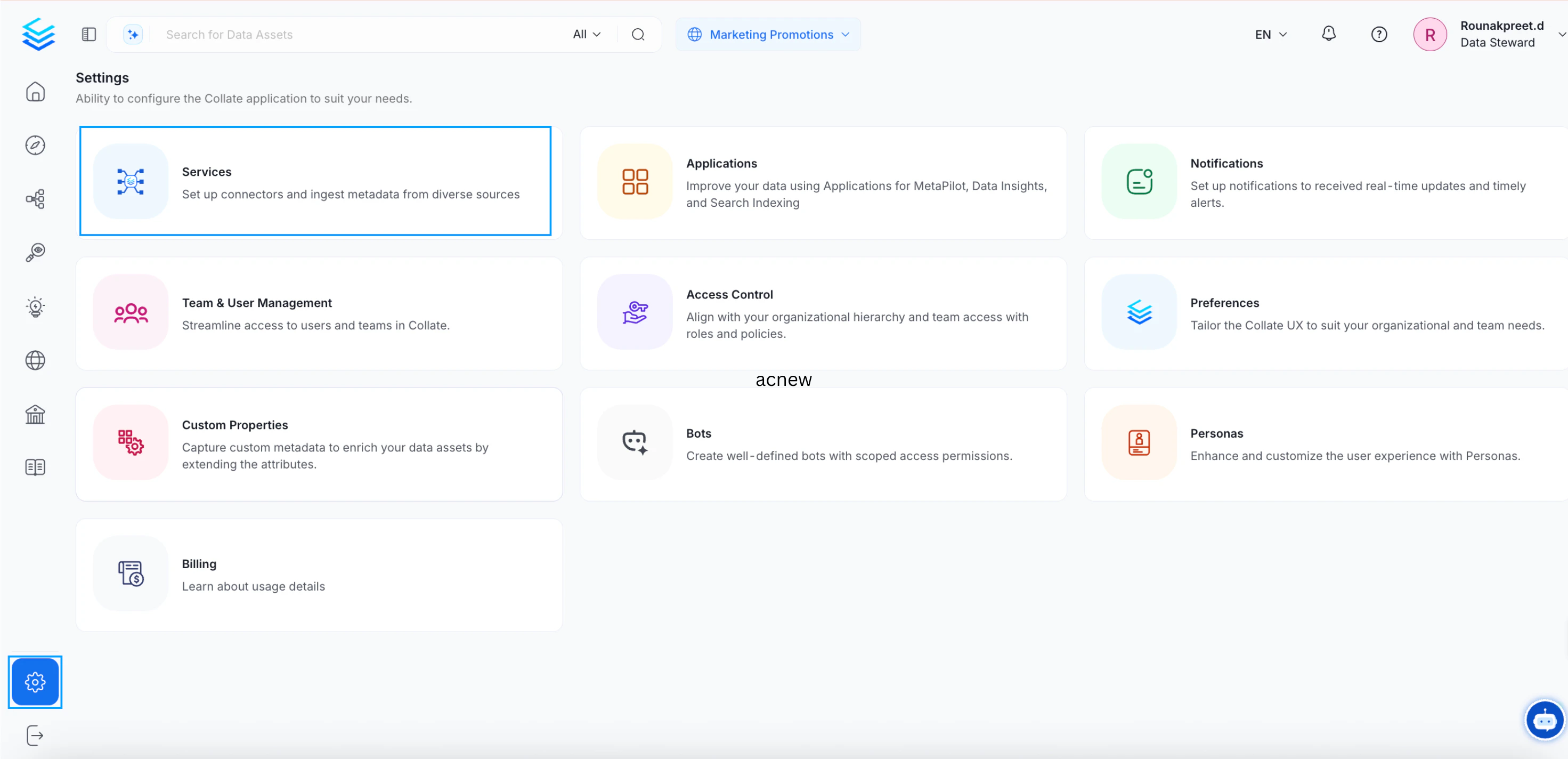
Go to the Settings page and click Services.
-
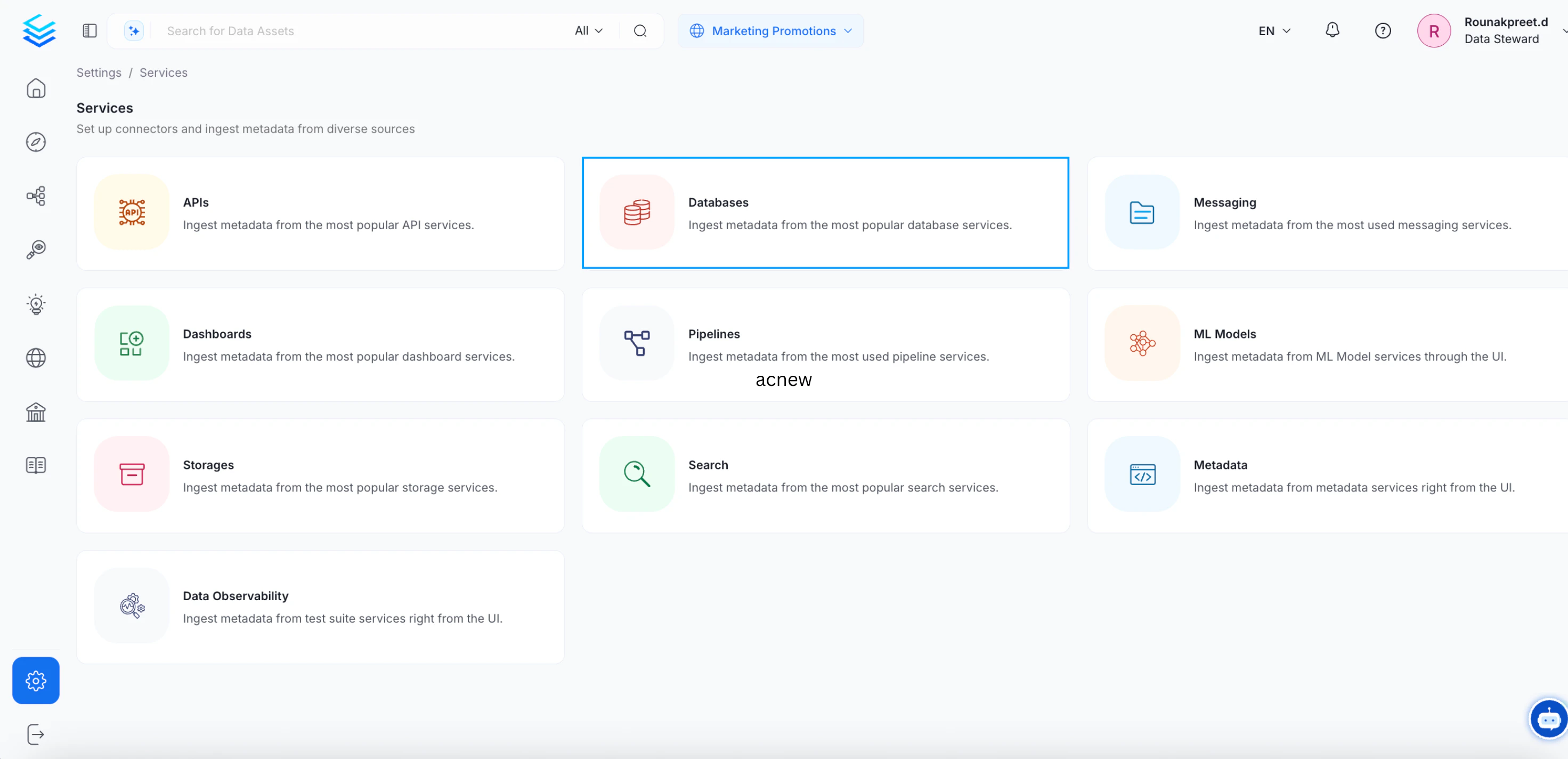
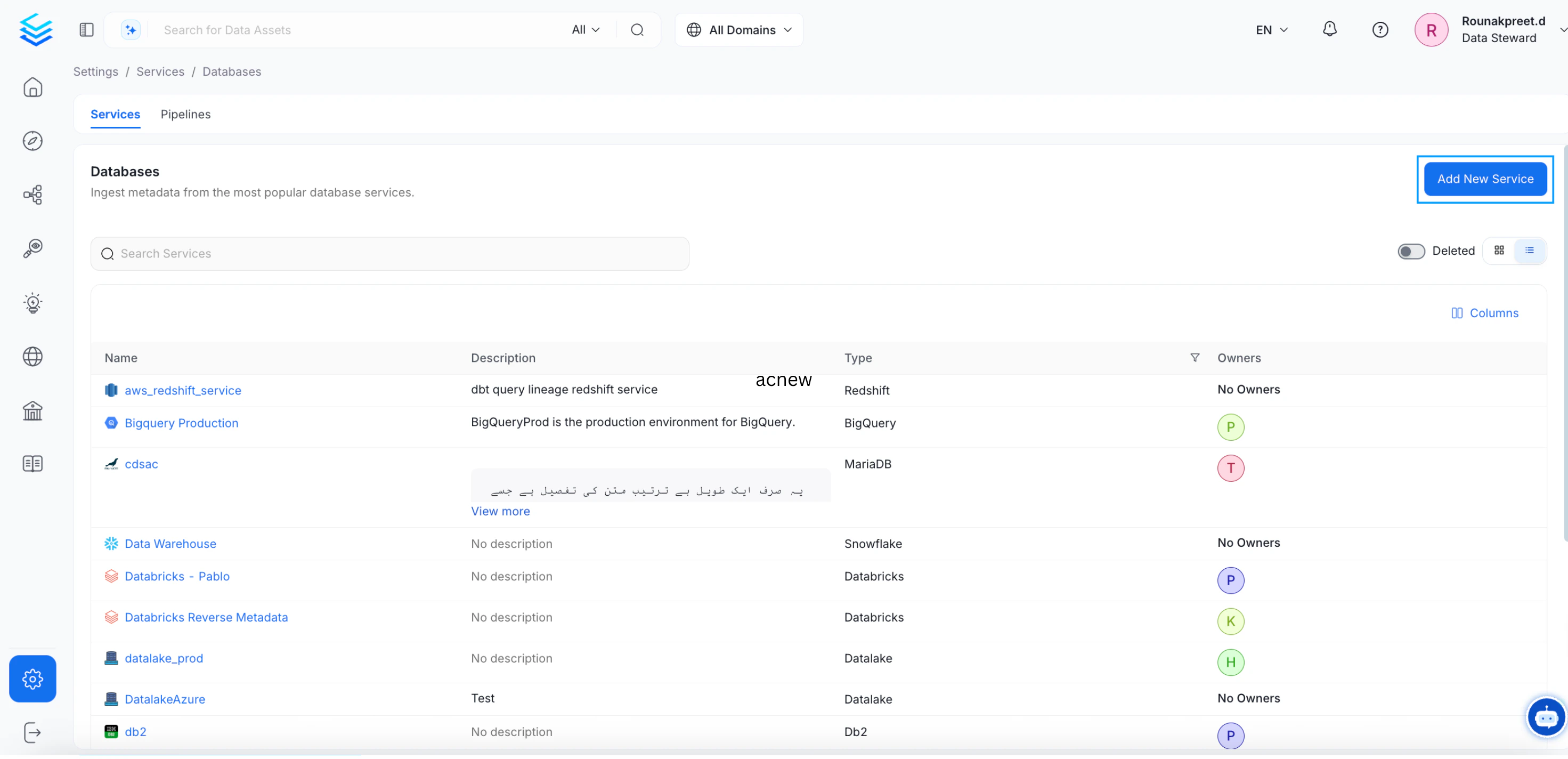
On the next page, select Databases and click Add New Service.
Step 2: Select a Database Connector
Select the Snowflake database service and click Next. You can select your desired database from the various database service options available.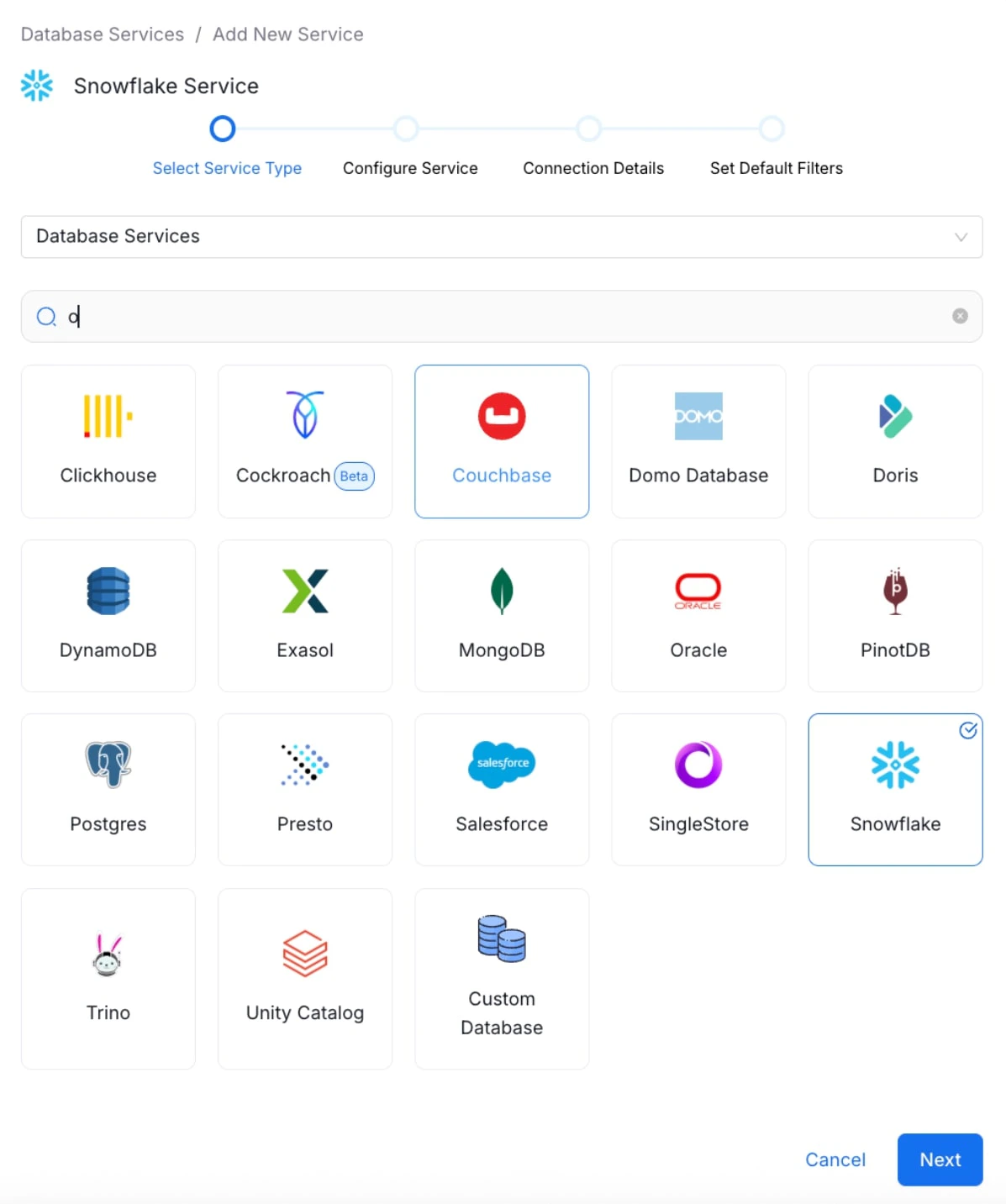
Step 3: Configure the Service
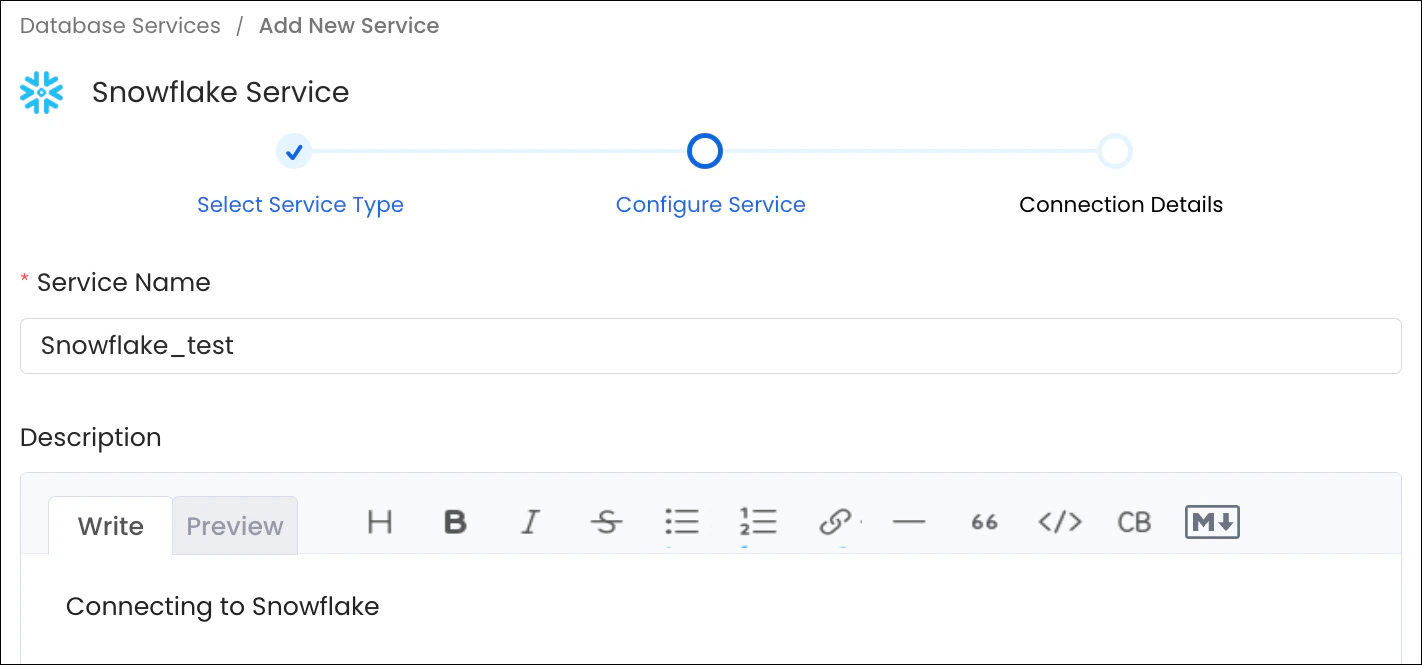
Enter a unique Service Name and Description, then click Next.- Service Name (required): No spaces allowed. Apart from letters and numbers, you can use _ - . & ( )
- Description (optional): Add a description to document the service and support data culture.
Step 4: Enter Connection Details
Enter the Connection Details for your service. The connector documentation is available in the right side panel within the OpenMetadata product UI. Required fields differ based on the service you selected. Enter your credentials to create the service and set up ingestion workflows.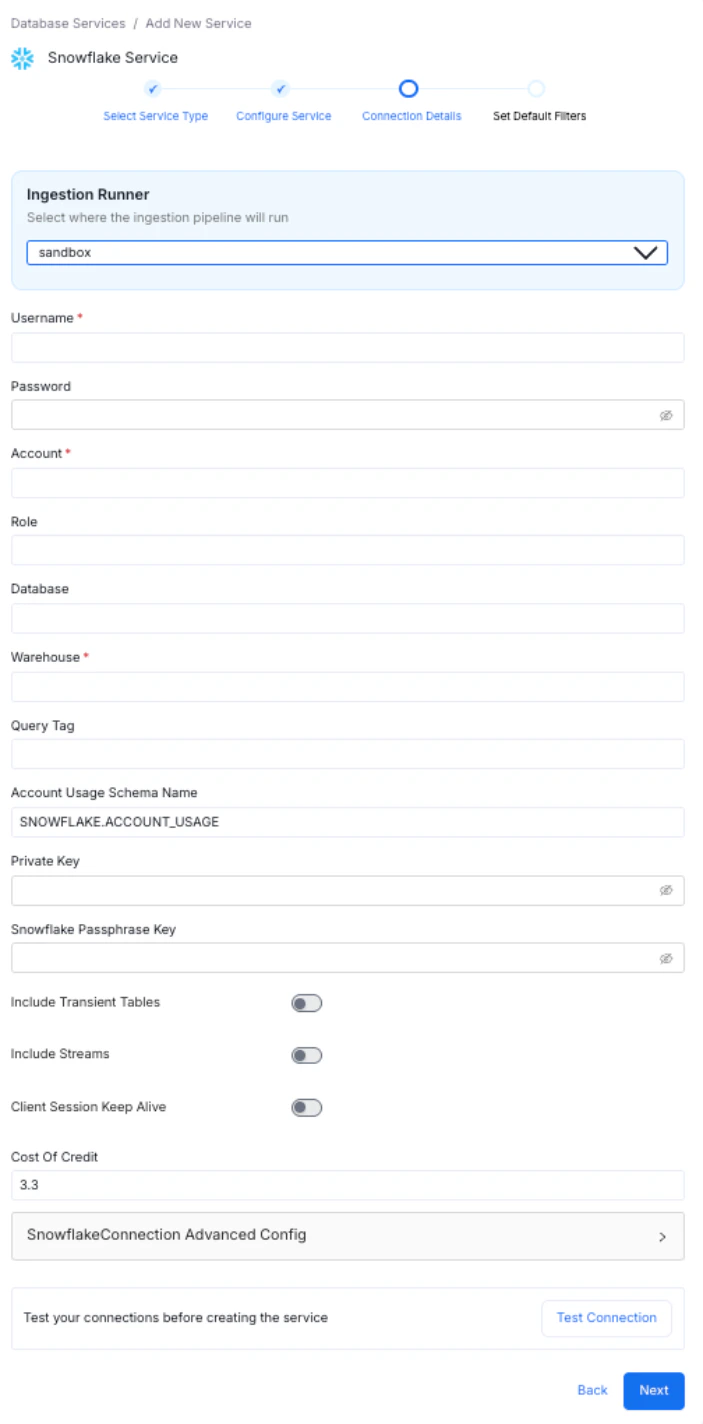
Step 5: Test the Connection
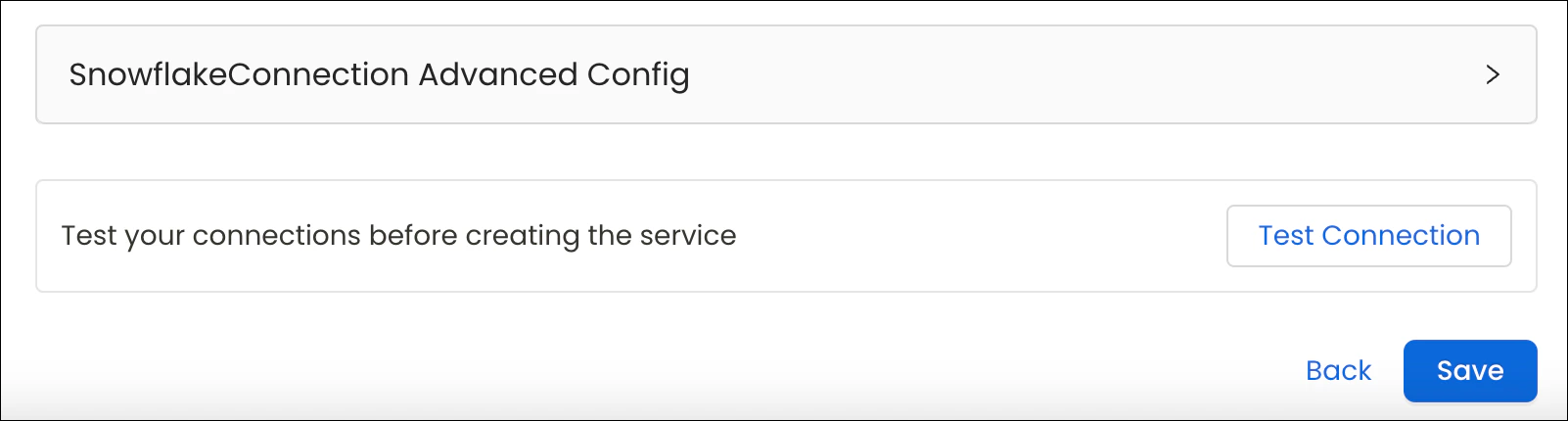
- Click Test Connection to verify access before saving.
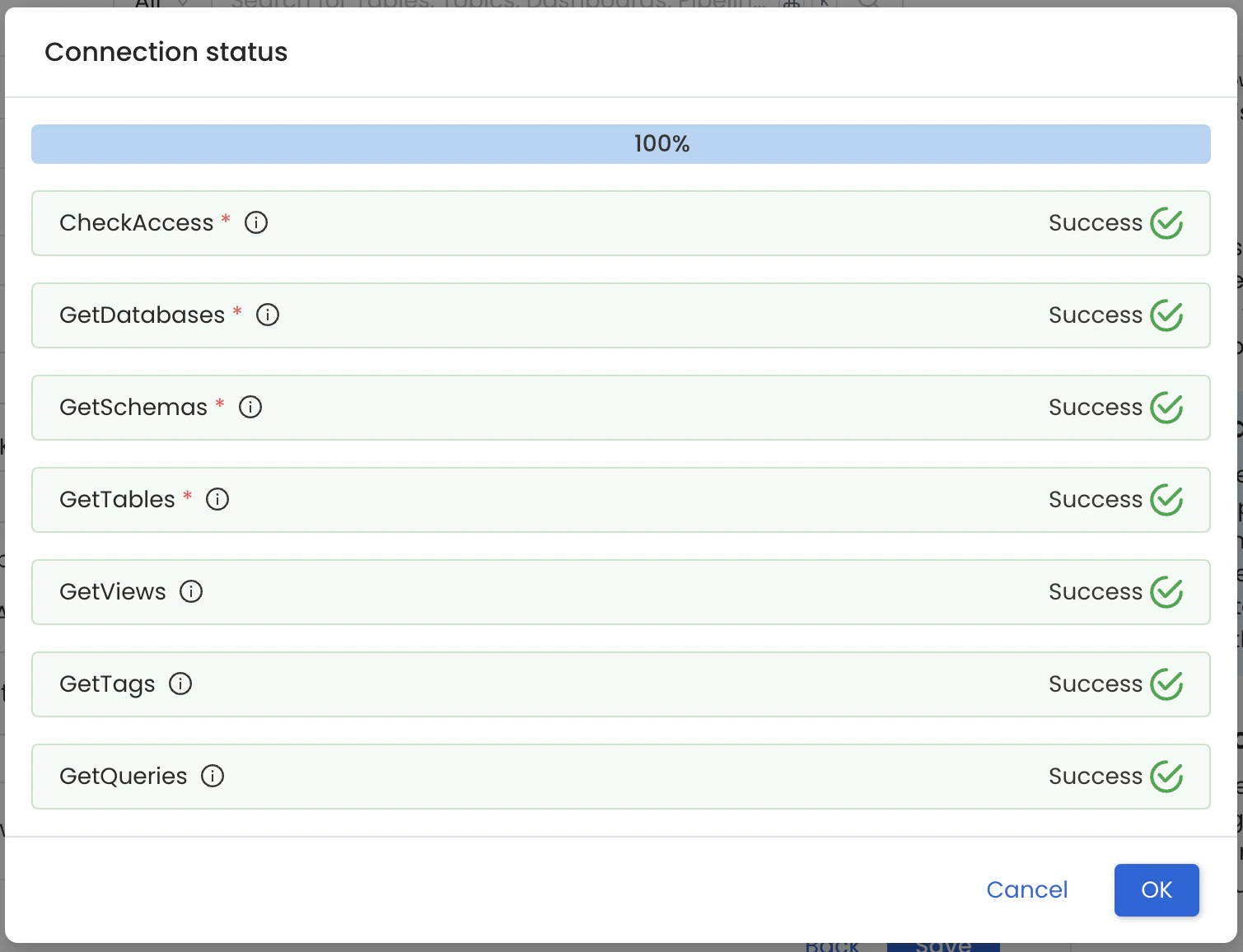
- The test checks connectivity and confirms which data assets can be ingested using the provided credentials.
- The Connection Status panel shows access results for the service and its data assets.
- The test checks connectivity and confirms which data assets can be ingested using the provided credentials.
- After the connection test passes, click Save.
Step 6: Save the Service and Add an Agent
-
Add the default schema, database, and table filter patterns, and then click Save to create and configure the database service.
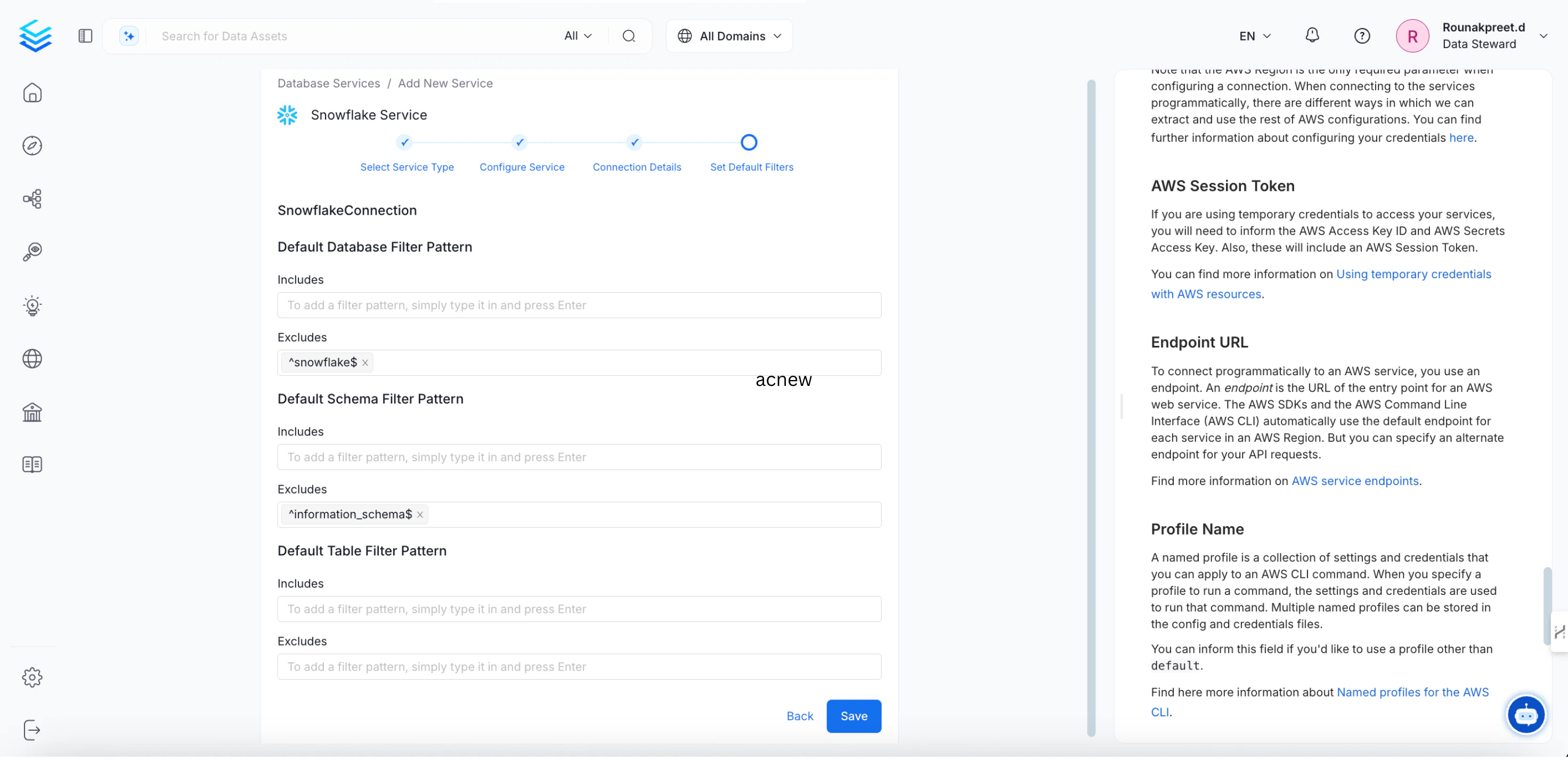
-
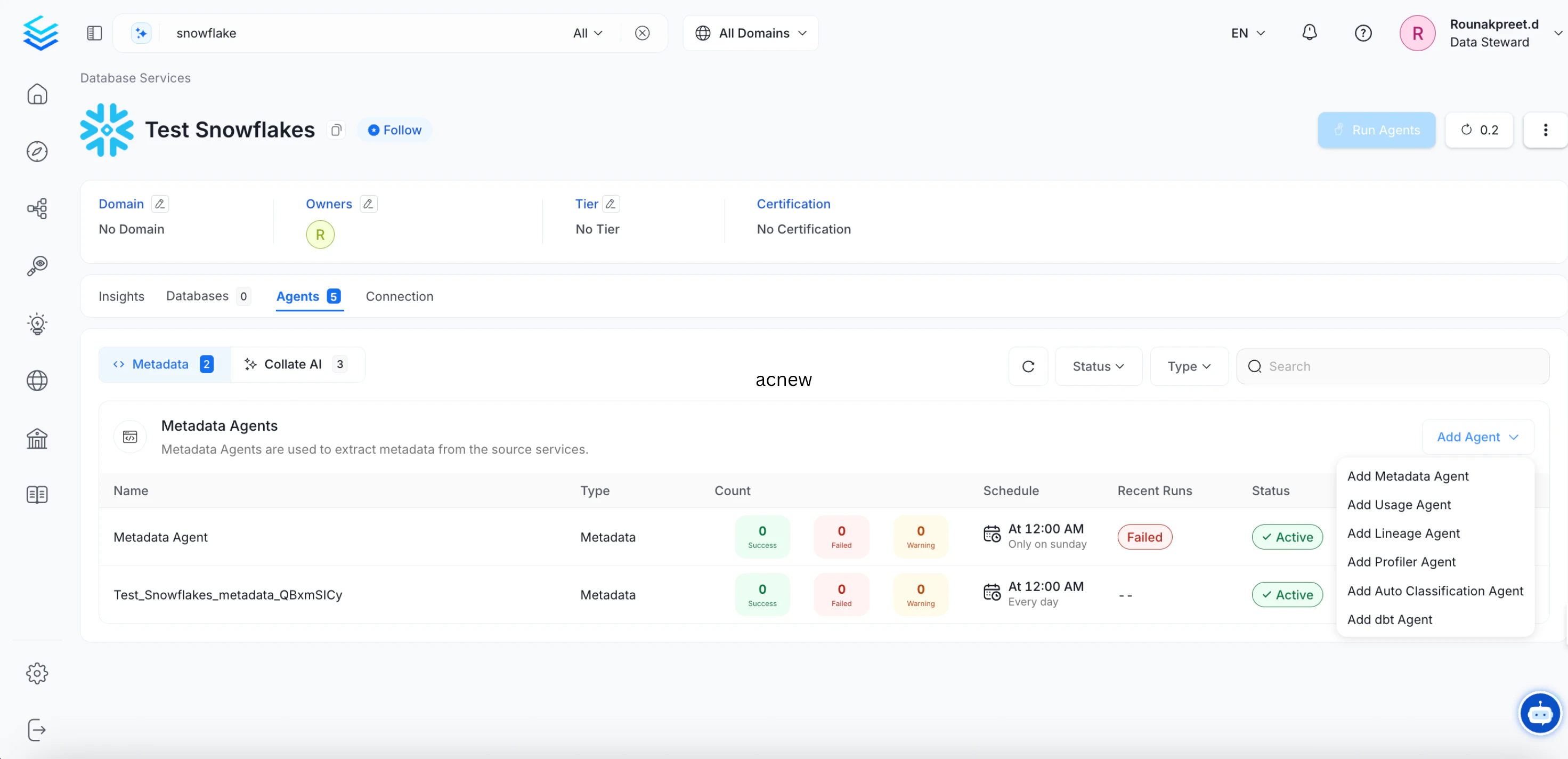
Go to the Agents tab and click Add Agent > Add Metadata Agent.
 Note: The Agents tab is visible only to Admins, direct owners of the service, or members of an owner team.
Step 7: Configure the Metadata Agent
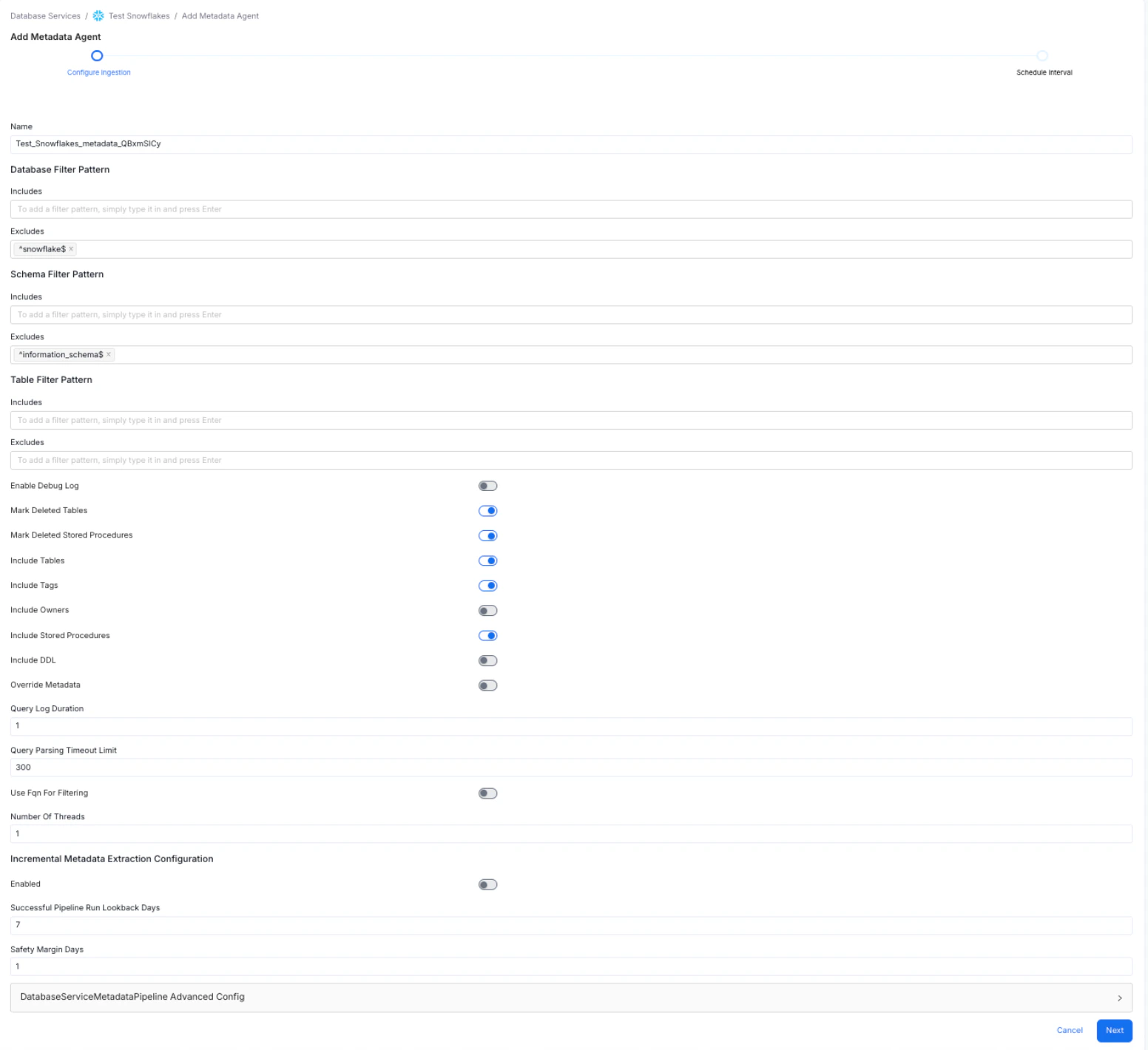
To set up the metadata agent, enter and configure the following details and click Next:- Name: Pre-populated with the service name and a randomly generated suffix to ensure uniqueness.
- Database Filter Pattern: Include or exclude specific databases. A database service can contain multiple databases — use this filter to ingest only the ones you need.
- Schema Filter Pattern: Include or exclude specific schemas within a database.
- Table Filter Pattern: Include or exclude specific tables within a schema.
- Use the toggle options to configure the following settings:
- Use FQN For Filtering – to apply the filters on fully qualified names.
- Include Views – to control whether to include views as part of metadata ingestion.
- Include Tags – to include tags as part of metadata ingestion.
- Enable Debug Log – recommended for troubleshooting.
- Mark Deleted Tables – enables soft deletion of tables during ingestion.
- Query Parsing Timeout Limit: Specify the timeout limit for parsing the view definition SQL queries to perform lineage analysis. Defaults to
300.
Step 8: Schedule and Deploy the Metadata Agent
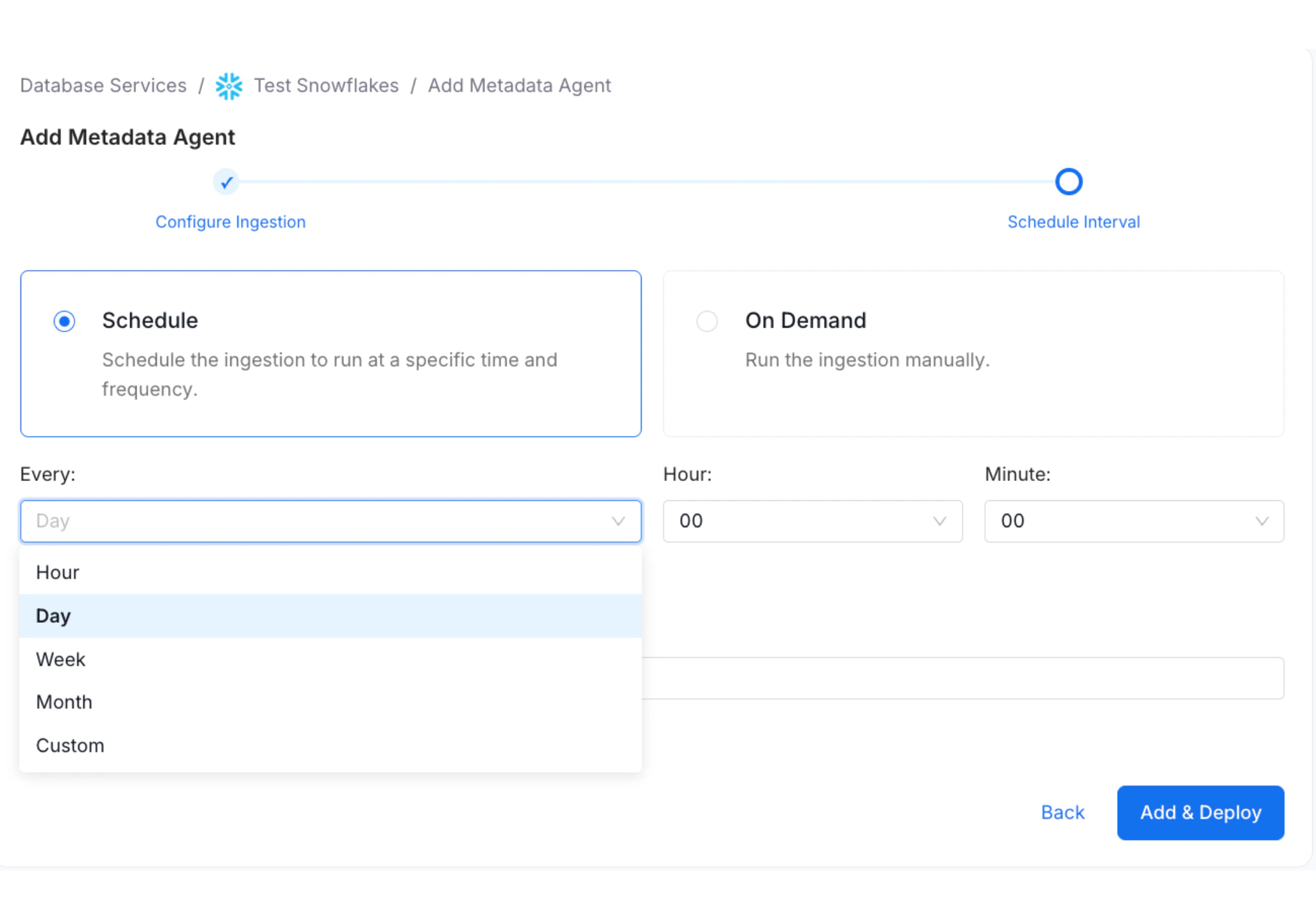
Define when the metadata agent pipeline runs. You can select a preset schedule or create a Custom schedule.- Select Schedule.
- From the Every drop-down, select a preset interval (Hour, Day, Week, or Month) or select Custom to define your own schedule.
- Enter Number of Retries. This sets the number of times the ingestion workflow restarts in case of failure.
- Click Add & Deploy.
Viewing Agent Run Status
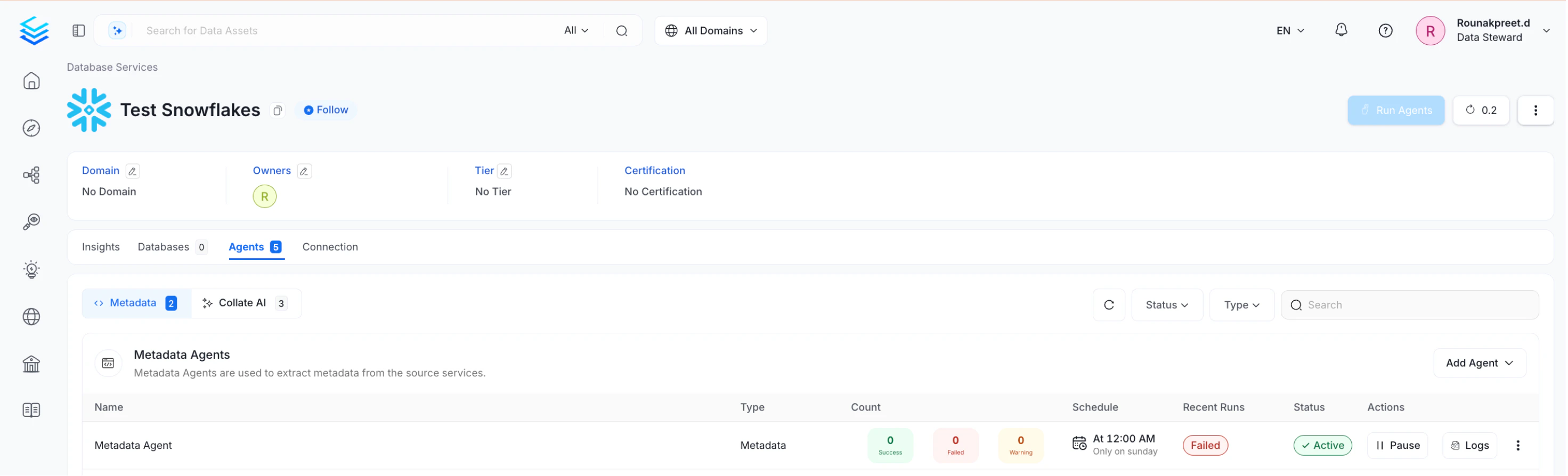
After the pipeline deploys successfully, click View Service. The Agents tab shows the status and run history for each agent — including whether a pipeline is queued, running, failed, or successful. Hover over an agent to view its scheduling frequency and the start and end times for recent runs. On the Agents tab, click the three-dot menu next to an agent to perform the following actions:- Run: Trigger the ingestion pipeline immediately.
- Kill: Stop all currently running instances of the pipeline.
- Re Deploy: Redeploy the pipeline definition after configuration, schedule, or credential changes. Use this if the source connection credentials change after the initial setup – redeploying applies the new access permissions and ingests any additionally accessible data.
- Edit: Edit or update an agent.
- Delete: Remove an agent from the list.
Browsing Ingested Data
Connecting to a database service lets you ingest databases, schemas, tables, and columns. The Databases tab on the Service page lists all ingested databases. You can further drill down to view Schemas and Tables for each database.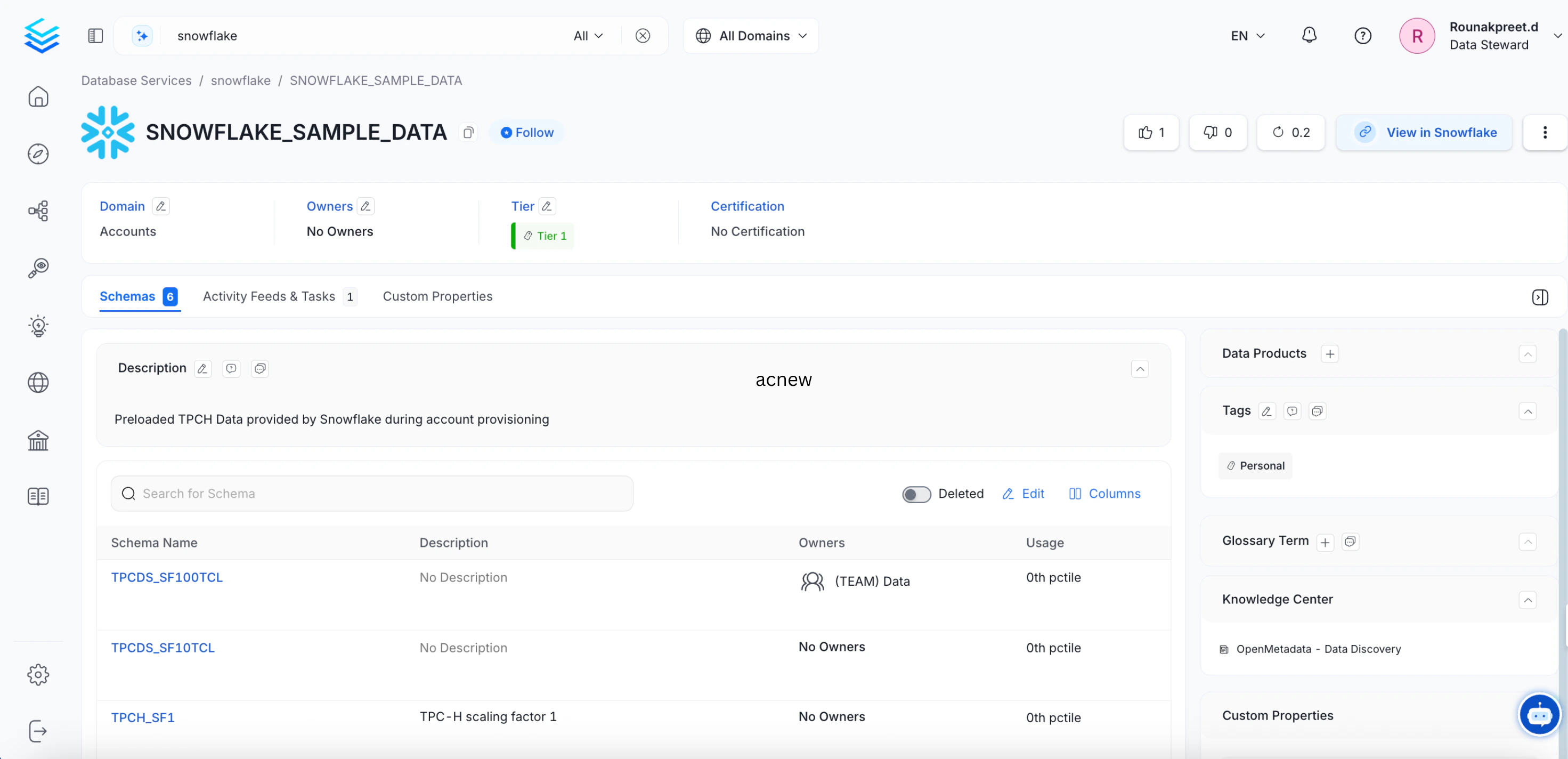
Managing Services
Admin users can create, edit, or delete services, and view connection details for existing services.Delete a Service Connection
Permanently delete a service connection.